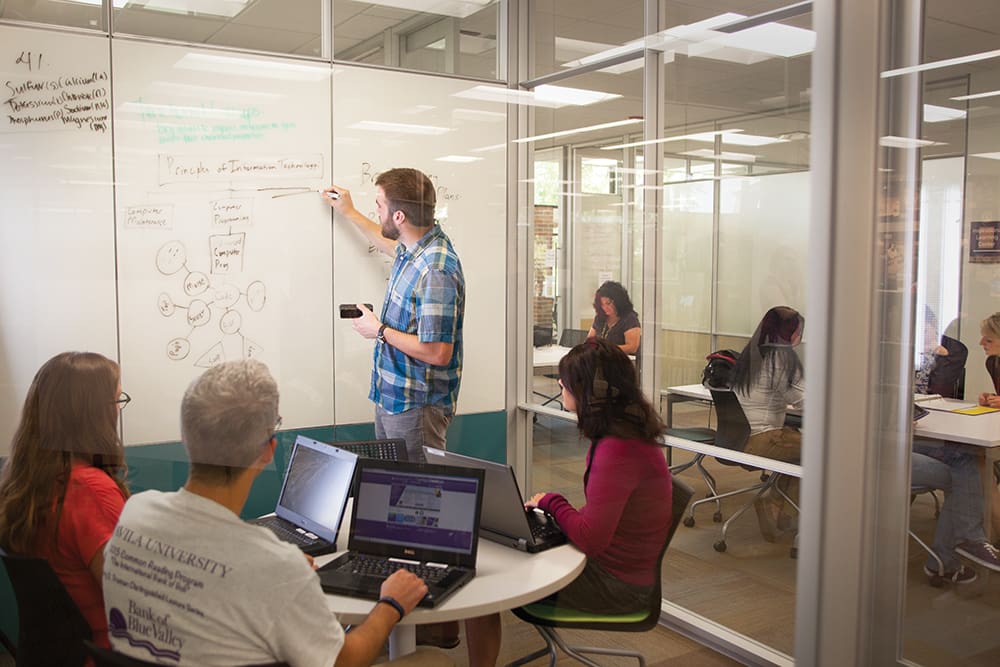
Study and Learn with Us!
We’re here to help you stay on track with your classes, find and practice different study methods, and work through difficult concepts.
Location
- The Ruth M. Willcox Writing and Tutoring Center is in the Library and Learning Commons – back corner of the library on the same side as the athletic fields.
We want to learn with you: drop by or call 816-501-3712.
Hours of Operation
See the Library and O’Reilly monitors for current topics and hours.
Information flyers are also posted in the library.
Appointment Information
You can schedule an appointment with a peer tutor in Navigate EAB
If you need assistance with setting an appointment, email tutoring.center@avila.edu or call 816.501.3712.
- Accounting
- Biology
- Business
- Chemistry
- Computer Science
- Communications
- Economics
- Finance
- Management
- Marketing
- Math
- Nursing
- Psychology
- Radiological Science
- Statistics
Online, 24/7 tutoring is available through Brainfuse for most courses. Click on the Brainfuse Online Tutoring link in any of your Canvas courses.
The Writing Center at Avila University is located in the Learning Commons and Hooley Bundschu Library. The Writing Center offers walk-in assistance as well as convenient appointments. There is no limit on how many times you can visit us, so come see what we can do for you! For appointment times, visit The Writing Center.
The following are commonly asked questions among students. Not finding what you want to know here? Stop by the Writing and Tutoring Center in the Library and Learning Commons, call 816.501.3712, or email tutoring.center@avila.edu.
Where are you located? The Academic Success and Tutoring Center is located at back of the Hooley-Bundschu Library and Learning Commons in the Ruth Willcox Center.
What happens during my first session? Be prepared to give us some background information that will be kept confidential. Your tutor will introduce him/her/themself and will discuss your academic support needs. Then you will work for 25 – 55 minutes. At the end of the session, you will be asked if you want additional sessions and will be asked to fill out a short evaluation form.
What do I bring to a session? You! It’s helpful if you bring your textbook and supplementary materials for the class, class notes, syllabus, past tests and quizzes, homework you’ve attempted, and writing supplies.
Contact
Lisa Balzaretti, Director of Academic Support Services
P: 816-501-3712 / E: lisa.balzaretti
How To’s
How to Schedule Face-to-Face Appointments with Our Avila Staff
- Go to EAB Navigate.
- Log in using your Avila username and password.
- We look forward to seeing you!
Need to Cancel Your Appointment? Here’s How:
- Go to EAB Navigate.
- Log in using your Avila username and password.
- Look for “Upcoming Tutor Appointments” on the bottom right of the screen.
- Click on the appointment you need to cancel.
- Click “Cancel My Attendance.”
For questions, call the Academic Success and Tutoring Services Center at 816.501.3712 or email tutoring.center@avila.edu.
How to Schedule an Online Brainfuse Appointment
How to Access Brainfuse Live Online Tutoring 24/7
How to Access Brainfuse:
- Click on a course in Canvas (any course will work!)
- The menu on the left side of the screen has a Brainfuse link near the bottom. Click it.
- the blue “launch Brainfuse” button will get you started!
Have your assignment(s) handy.
- You will have the option to upload a document at the beginning of your session.
- You can share files with your tutor at any time throughout your session.
- Don’t have your assignment saved on your computer? That’s okay! You can snap a pic of your assignment with your phone and upload it.
Helpful tips:
Make sure your computer is properly equipped.
- The ideal computer set-up will include a microphone and a camera.
- No access to a computer with a microphone and/or camera? That’s okay!
Brainfuse has its own messenger setup, and that can be used instead. Also, there’s an option to use just audio or just video with messenger
Have specific questions ready to go!
- Before beginning a session, you will be asked to list any assignments and/or questions you want to discuss.
- The more details you give, the more the more help your tutor can give you!
Four Helpful Session Tools:
1. File Sharing — This allows you to upload papers or assignments any time before or during the session.
2. Text-Editor — Allows either party to edit an uploaded document during the session.
3. Code-Editor — Great for computer science and/or coding help.
4. Whiteboard — Let’s you draw pictures, create a textbox, etc. with your tutor.